


Editpad Pro
Powerful, Versatile, and Convenient Windows Text Editor to Edit All Kinds of Text Files
When I first discovered EditPad Pro, I was on the hunt for a versatile text editor that could help me streamline my writing and coding processes. As a writer and occasional coder, I needed something that could handle large files, provide syntax highlighting, and above all, be intuitively customizable. Little did I know, I was about to stumble upon a tool that would revolutionize the way I worked with text—that tool was EditPad Pro. Buckle up, because I'm about to take you on a comprehensive journey through everything this powerhouse of a text editor has to offer.
The All-Inclusive Features of EditPad Pro
When it comes to text editing, EditPad Pro shines brightly. It's packed with features that cater to both programmers and everyday users. But what makes this software stand out from the crowd? Let's dive into its standout qualities.
1. Syntax Highlighting for Multiple Programming Languages
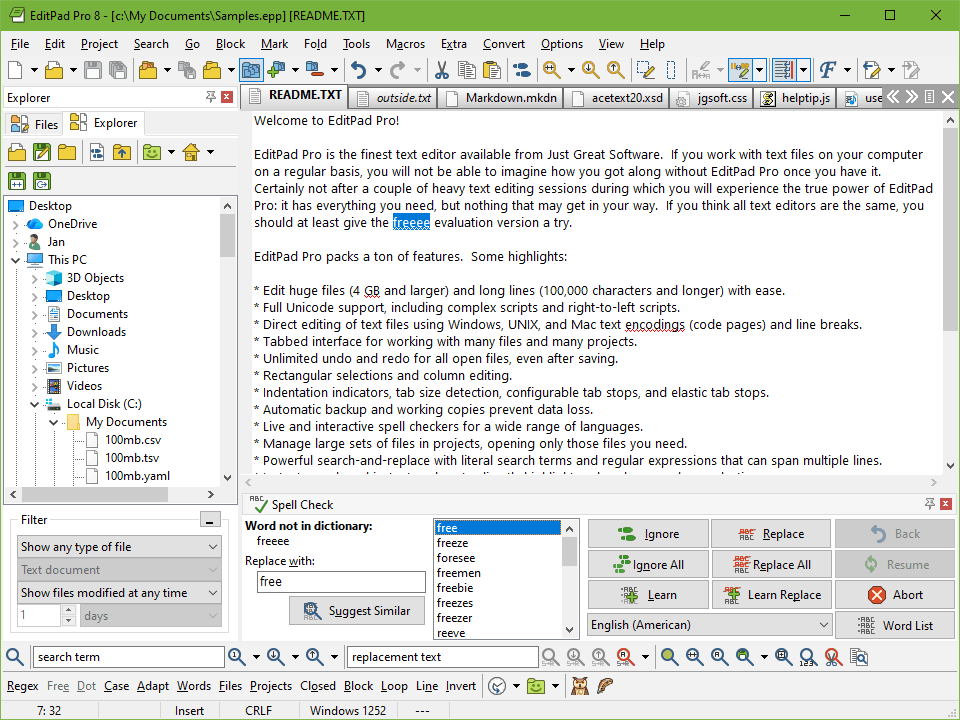
Ever tried coding in an environment that didn’t highlight your syntax? It can be frustrating. With EditPad Pro, you get syntax highlighting for a wide range of programming languages. This feature makes it easier to read, write, and debug your code. It’s like giving your code a vibrant wardrobe; it stands out and becomes easier to understand.
2. Efficient Handling of Large Files
Handling large files can be a headache for many text editors. However, EditPad Pro steps up to the plate. This tool can manage files as hefty as 2 GB. Yes, you read that right! So, whether you’re working with extensive log files or large datasets, you don’t have to worry about slow performance or crashes.
3. Customizable Interface
This is where things get really exciting. Everyone has their personal preferences. EditPad Pro offers a customizable interface allowing you to change colors, fonts, and keyboard shortcuts. Want a dark theme for late-night coding? Or specific key bindings for your coding style? You got it! It's like making your own personalized editing space.
4. Powerful Search and Replace Functions
Searching for specific text can sometimes feel like hunting for a needle in a haystack—unless you have the right tools. EditPad Pro's powerful search and replace functions, complete with regex (regular expressions) support, really shine. You can search through multiple files simultaneously, enhancing both efficiency and accuracy.
"EditPad Pro offers unmatched versatility for both programming and writing—it's a hidden gem in the world of text editors!" - Expert Reviewer
Supporting Diverse File Types
EditPad Pro also boasts fantastic support for various file types. Whether you're operating on Unix, Mac, or DOS, this editor has you covered. It handles multiple file encodings seamlessly, ensuring you won’t run into compatibility issues.
Feature | Details |
|---|---|
Supports Unix/Mac/DOS line breaks | Yes |
Handles various file encodings | Yes |
With all of these incredible features, EditPad Pro is truly a powerhouse for anyone in need of a robust text editor. It’s efficient, customizable, and designed with the user's needs in mind.
Navigating the Customization Options
When it comes to text editing, having a workspace tailored to your preferences can make all the difference. Personally, I love customizing my interface to suit my needs. It feels like creating my own little kingdom where I can get things done efficiently.
1. Tailoring Colors and Fonts for Comfort and Clarity
One of my primary focuses is on colors and fonts. Did you know that the right color scheme can reduce eye strain? For instance, softer hues like light blue and gentle green are easier on the eyes than stark white or black. I play around with these settings frequently. I want my workspace to feel comfortable, especially during long writing sessions. You would be surprised how much of a difference it can make!
Choose a color scheme that works for you: Lighter colors can bring a sense of calm, while darker themes can be easier to read in low light.
Pick readable fonts: Simple fonts like Arial or Calibri often enhance clarity, especially in the long run.
2. Modifying Keyboard Shortcuts for Enhanced Productivity
Next on the list is keyboard shortcuts. Have you ever found it annoying to navigate menus constantly? By customizing shortcuts, I can save time and energy. For example, if I'm frequently using "copy" or "paste," having those shortcuts set up just right streamlines my entire process.
Identify your most used actions: Make shortcuts for those tasks. You’ll feel like an editing wizard!
Keep a cheat sheet: When learning new shortcuts, I jot them down until they become second nature.
3. Setting Up Personalized Toolbars for Quick Access
Setting up personalized toolbars is another game-changer. I enjoy having my most essential tools at my fingertips. It’s like having a toolbox where everything is perfectly organized. By rearranging tools according to how often I use them, I can work much faster.
Group tools by function: Divide your toolbar into sections for easier navigation.
Regularly update your toolbar: As I evolve in my writing or coding, so do my needs. Adjust your toolbar to fit your current projects.
4. Determining the Ideal Layout with Tabbed Editing
Lastly, tabbed editing is essential. It allows me to work on multiple files simultaneously without losing track of them. I once struggled with switching back and forth between documents, wasting precious time. Now, I can open multiple tabs without feeling overwhelmed.
Organize tabs by relevance: Keep related files together for easier access.
Close unused tabs: Too many open tabs can lead to confusion. I regularly check what I need and focus on those.
So there you have it! Customizing your workspace isn’t just about aesthetics; it’s about creating an environment that boosts your productivity. What’s stopping you from diving into your customization options?
Handling Data with Efficiency
When it comes to editing vast text files, speed is critical. Large text files, some reaching up to 2 GB, can slow down productivity. Fortunately, my experiences with EditPad Pro have been fantastic. This tool efficiently handles massive files without a hint of latency. Imagine scrolling through thousands of lines of code or text without any delays! Have you ever experienced that annoying lag? With EditPad Pro, it's a thing of the past.
Exploring the Clip Collection Feature
One of my favorite features is the clip collection. This tool allows me to store snippets of text I use frequently. It's like having a digital toolbox right at my fingertips. A satisfied user once shared,
"The clip collection is a life-saver; it saves me from retyping the same snippets over and over!"
I can’t agree more! Whether it's coding phrases or standard responses, the clip collection streamlines my workflow.
My Experience with the Spell Checker
Another handy feature worth mentioning is the spell checker. Often, while I’m immersed in writing, I overlook typos. With EditPad Pro's built-in spell-checking capabilities, errors are easily caught. The real-time suggestions make corrections seamless, ensuring my work is polished and professional. This aspect brings peace of mind. I can focus on content, not punctuation!
Recording and Playback for Macros
Let’s not forget about the recording and playback features for macros. These come in handy when performing repetitive tasks. For instance, I could record a series of keystrokes—like formatting a document or inserting headers—and replay them whenever needed. It’s like having a reliable assistant you can call upon at any time.
Key Features at a Glance
Feature | Description |
|---|---|
File Size Support | Supports files as large as 2 GB |
Seamless Replacement | Can replace across multiple files seamlessly |
Editing is both an art and a science. With powerful tools like EditPad Pro, creating and managing large files transforms from a daunting task into a streamlined, efficient process. I can’t wait to see how these features continue to elevate my editing experience!
Real-World Applications and User Experiences
When it comes to text editing, choosing the right tool can make all the difference. Many developers and writers have found their go-to editor in EditPad Pro. Let’s dive into how this software fits into their everyday workflows.
1. Developers and Their Workflow
Imagine coding late into the night. You need a text editor that keeps pace. EditPad Pro becomes crucial here. The powerful features, like syntax highlighting and code folding, streamline tasks. Developers appreciate that it handles large files effectively, even those weighing up to 2 GB. This matters when you're knee-deep in a project.
"As a developer, I need a text editor that won't slow me down; EditPad Pro ticks all the boxes for me!" - Developer
2. Writers Share Their Insights
Writers also find value in EditPad Pro. For drafting, its customizable interface is a game-changer. Imagine adjusting colors and fonts for clarity. This personalization enhances focus.
Spelling check features help polish drafts before submission.
Writers can utilize the clip collection to save frequently used snippets.
These usability features promote seamless drafting and editing. The experience is smooth, making it easier to concentrate on the content itself.
3. Comparing Text Editors
We often ponder: How does EditPad Pro stack up against its competitors? In my experience, while many editors provide basic functionalities, EditPad Pro excels with its comprehensive toolset. Tabbed editing and easy file navigation are standout features. Other editors might fall short in flexibility and speed.
4. Harnessing Search and Replace
The search and replace capabilities of EditPad Pro deserve a spotlight. Picture needing to change variable names across numerous files. Instead of tedious manual edits, the powerful search tools simplify this task. We can replace terms using regular expressions or target specific file types. What we gain in time and effort is invaluable.
Community feedback highlights enjoyment in these features. Real users share stories of improved productivity. Why settle for less?
Overall, EditPad Pro provides a comprehensive set of tools aimed at efficient text editing, making it a suitable choice for developers and writers alike.
Chart Representation of Features
Feature | User Feedback |
|---|---|
Syntax Highlighting | Highly rated by developers |
Customizable Interface | Favored by writers for personalized experience |
Multi-file Search & Replace | Praised for efficiency in coding tasks |
Tabbed Editing | Many prefer it for easier file navigation |
Final Thoughts: Is EditPad Pro Right for You?
As we wrap up our discussion on EditPad Pro, it's clear that this software is more than just a text editor. It's a comprehensive tool designed for those who work with text extensively. So, what makes it stand out among countless options? Let's break it down.
Key Features
First and foremost, EditPad Pro offers a plethora of essential features. You get syntax highlighting for numerous programming languages, which is crucial for developers. Plus, code folding helps keep your workspace tidy. Imagine being able to collapse code blocks that aren't in use; that’s a dream for many coders. And let's not forget about the bracket matching—navigating complex code becomes way easier.
Learning Curve
However, we should reflect on the learning curve associated with feature-rich applications. At first, it might seem overwhelming with so many options. But, consider it as an adventure in tech! With such customization, once you get the hang of it, you'll never want to go back. You could think of it like learning to ride a bike; it’s rough at first, but then you cruise.
Who Will Benefit Most?
EditPad Pro is particularly beneficial for developers or anyone who deals with large volumes of text files. If creating complex code or streamlining workflows is part of your daily routine, this could be your best companion. A quote from a reviewer resonates here:
“In a world of text editors, EditPad Pro stands out as a choice for those who dare to customize and create!”
Encouragement to Try
If you’re curious, I encourage you to try the free trial. Yes, just dive in and explore. After all, the best way to learn is to experiment yourself. You'll gain firsthand experience with its robust capabilities.
My Personal Take
In my view, EditPad Pro presents tremendous value. The extensive features cater well to serious users, yet the initial setup can be daunting. But isn't that the case with all powerful tools? Let’s be real; mastering a skill takes time and patience. I’d love to hear your thoughts too. What has your experience been like?
In conclusion, EditPad Pro is an exceptional tool for those willing to invest time into learning. With its rich features and customization potential, it can become an invaluable asset. Whether you're coding, writing, or simply editing, this software may just be the solution you've been searching for.